No matter how long you've had your website, today is the perfect moment to speed up a WordPress site and improve your users' experience.
1. Measure the loading
speed of your current WordPress
If you already have a website, the first thing you must do is measure the current speed. To do this you can rely on pagespeed, gtmetrix or pingdomtool. It's good to compare each one when the optimizations have already been applied.
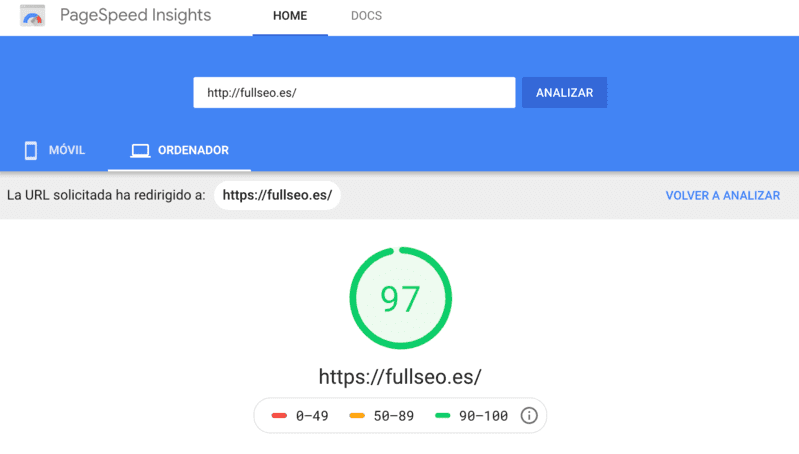
This will help you compare the speed after taking the optimization measures on your site.
2. Host your website on a good hosting
to improve WordPress page speed
A good Hosting or hosting service has plenty of advantages.
One of them is the ability to respond quickly to user requests and offer a fast experience.
But not only that; performance or web ranking is not the most notable thing, but those derived from security, viruses, cyberattacks and many other elements jeopardize the operation of your WordPress site.
To improve this aspect, you must focus on hosting your site on a good hosting plan with features; this will facilitate speed and it's better if it has WordPress configurations.
3. Use an optimized
WordPress theme
Another way to increase performance and improve WordPress site speed is by choosing a lightweight theme. One that doesn't contain too many scripts, CSS or JS.
The WordPress platform has many optimized free or paid themes that will help you with your site. And you don't have to go in blind. Before buying the template you can measure its speed with the tools we showed you before.
Our advice is that regardless of certain themes' advertising, or if a friend recommended it, before purchasing, evaluate its speed with pagespeed.
Also, keep in mind that these themes, when you view them, are inside an iframe, as is the case with themeforest. In this case, you must remove the iframe, opening the website by searching it on Google by name and not from the themeforest or envato preview; this way the loading speed will be calculated from the real website and not from the iframe. Pay close attention that the url you analyze is the theme's and not the iframe's.


4. Serve your website through a CDN
The Content Distribution Network or CDN is a service that serves for you all those static files found on your website.
This can cover image files, JavaScript JS scripts and CSS stylesheets.
5. Optimize WordPress speed using WPO plugins
Good webmasters use plugins to improve WordPress speed. These WPO plugins serve for various things:
5.1. Minimize code
This allows removing from code both blank spaces and comments. With this you achieve a significant reduction in file size, generating faster loading.
A tip I have for you is to use the free plugin Autoptimize. It's one of the best plugins to improve WordPress speed. And if you want to improve the experience even more, get the paid plugin WP Rocket.
5.2. Combine CSS and JavaScript files
Almost all WordPress sites are integrated with various CSS and JavaScript files, some for themes and others are basically plugins, although it's very likely you already have some customized ones.
But if you want to speed things up, consider combining these files.
But careful, this is something that will also depend on the server configuration.

Example of combining CSS in WP Rocket
5.3. Activate and configure cache to optimize WordPress speed
Temporary files always end up in cache and can thus be delivered to visitors and users much more efficiently.
Now, if you want to simplify enabling caching, consider buying WP Rocket. You simply install it, activate it and then configure it. It's many's favorite plugin to improve WordPress speed.
Anyway, there are free cache plugins that work great, like W3 Total Cache.
CAREFUL: If you have an optimizer plugin like WP Rocket or Autoptimize they may already have the cache function built in and it will overlap with the cache plugin, something that may even break your site. If you use one of these plugins, you don't need to install a separate one just for the cache; remember they have it built in.
5.4. Optimize the database and spam
Clean the database every time you finish a job to avoid slowing your site down. You also have to delete all spam comments or revisions that aren't needed.
5.5. Optimize Google fonts
A large number of themes use Google Fonts, which are downloaded from Google's servers when a user visits your site and it's something that takes time because the process is complicated and heavy.
To improve this, use WP Rocket which optimizes Google Fonts requests automatically. Swap Google Fonts Display is also a good way to start.
5.6. Optimize images
Optimizing images has no cost. It's very fast and is one of the most important measures you can take to improve WordPress page speed.
It's important to optimize images before uploading them to your website to improve performance and increase loading time speed. Otherwise the complete page display will slow down.
To optimize images and at the same time optimize WordPress loading speed, you can help yourself with photo retouching tools, like Adobe Photoshop or optimizilla online.
If you already have them uploaded to the website and they're not optimized, try the smush plugin; it will optimize the images you have on the website for you.
If you use autoptimize, this smush option is already included.
5.7. Activate site preload if you want to optimize WordPress speed
Define essential resources using site preload. Suppose your code looks like this:
<html>
<head>
<script type=”text/javascript” src=”archivo.js”></script>
<link rel=”stylesheet” href=”/style.css”>
</head>
<body>
</body>
</html>
From this code snippet, the JavaScript file must load first because it's the highest hierarchy. However, this isn't the most appropriate because the CSS file is almost always the most critical.
To solve this detail, add a new line of code like the following:
<link rel="preload" href="/style.css" as="style">
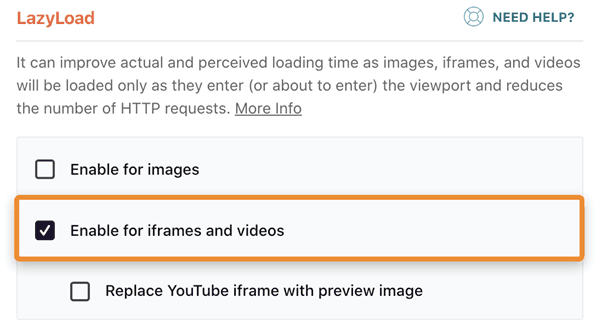
5.8. Enable LazyLoad
Enabling this function allows improving WordPress loading speed. This happens because images and videos will load when they're visible on the screen.
We recommend using WP Rocket or, if you don't have it, the free plugin Lazy Load for Videos.
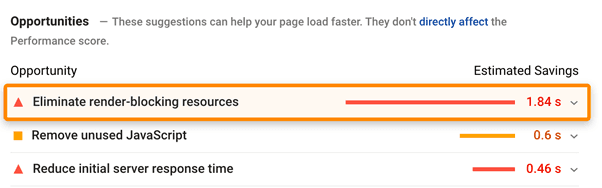
5.9. Eliminate render-blocking resources
Rendering is converting a web page's code into something visible. But a web page doesn't always need to load in its entirety before being made visible to the user.
That's why, to improve WordPress loading speed, you must prioritize loading resources for above-the-fold content.

6. Don't install unnecessary plugins
WordPress plugins are part of the secret of its success. Having thousands of free applications with which to improve and expand the functionalities of your website is what has revolutionized content management and creation.
And, because of this, it's common for every WordPress admin to try many plugins, sometimes too many.
The rule is to use only what you really need. Nothing happens if you try hundreds of plugins as long as you later deactivate and delete all those that aren't really necessary to offer a functional experience of your website. Although I don't recommend it because some can leave junk code.
6.1 Try to use optimized plugins
If you want to optimize performance and improve WordPress loading speed, go directly to your plugins. With P3 Plugin Performance Profiler, you can find out how optimized the plugins installed on your site are.
6.2 Eliminate plugins not in use
If your website has been around for a while, you probably have a bunch of plugins installed you don't really need. In this case, the best you can do to improve WordPress loading speed is to deactivate or uninstall all those plugins you're not using.
But of course, exercise discretion. Don't massively remove in a way that you could lose some useful tool. When in doubt better leave it. I recommend you go trying to activate and deactivate until you discover which plugins are essential and remove the dispensable ones. And don't let the cache trick you! (For each test, clear the cache both on the website and on the browser).
7. Keep updates up to date
Updating is for pros and even more so when we want to improve WordPress loading speed and have its effects sustained over time.
WordPress, plugins and your website's theme are constantly being updated by diligent developers to improve their performance. That's why, to take maximum advantage of them, you should constantly update.
That said, it's advisable to be cautious. It's important that every time you do an update, you have a backup. That will allow you to cover your back against any inconvenience that may arise from the update.
8. Watch out for
high RAM memory consumption
WordPress, like any other software, runs in RAM. That's why it's appropriate to be aware of how much RAM each plugin consumes.
Of course, there's no tool that provides us with that information, at least not in a simple way, but there is a trick that can help you in this case.
What you must do is install the plugin Server IP & Memory Usage Display, and you go deactivating plugins one by one, measuring at the same time the variation in memory consumption.
9. Improve WordPress
speed by fixing 404 errors
404 errors are a "pain"
Did you know they also slow down loading speed?
What you must do in this case is use a broken link detection tool like Broken Link Checker for WordPress, or W3C Link Checker and fix them one by one. This will also contribute notably to your organic ranking, as it improves ON-page SEO.
If not, you can also use tools like Ahrefs, Semrush, Screaming Frog, etc.
10. Use external
services to host videos
You shouldn't have any video hosted on your website. To use this type of multimedia resources, upload it to a video-specialized website like YouTube or Vimeo.
This section can't be taken lightly. In fact, multimedia content is by far what most affects a website's loading speed.
But it's not just that, no matter how much you invest in hosting, each video's load will be multiplied by the number of internet users enjoying it at the same time. Whew...
11. Improve WordPress speed
by leveraging thumbnails
Thumbnails or "thumbnails" are very important for the responsive function of our WordPress theme. So, for each image we upload, WordPress resizes or crops into different thumbnail versions.
The size of each one and the number it generates depends on the theme we're using. But the fact is that if we leverage them, we'll improve server response and reduce disk storage space.
12. Remove static strings or remove query strings from static resources
CSS files and some Java scripts include version control.
Example: http://dominio.com/style.css?version=1.02
This generates the inconvenience that it adds load to the page and incidentally exposes the versions we use in scripts, with the danger that someone malicious takes advantage of some error of that version.
That's why the best is to disable this function, directly from the theme editor:
APARIENCIA-EDITOR:
function _remove_script_version( $src ) {
$parts = explode( '?', $src );
return $parts[0];
}
add_filter( 'script_loader_src', '_remove_script_version', 15, 1 );
add_filter( 'style_loader_src', '_remove_script_version', 15, 1 );
13. Enable browser cache
Systems leverage cache memory to improve their performance. This works as a high-speed memory and Google values its use. That's why you must specify browser cache which will give signals to the search engine about how often content changes.
You can do it with a plugin, or using lines of code:
## BEGIN EXPIRE HEADERS
ExpiresActive On
ExpiresByType image/jpg "access 1 year"
ExpiresByType image/jpeg "access 1 year"
ExpiresByType image/gif "access 1 year"
ExpiresByType image/png "access 1 year"
ExpiresByType text/css "access 1 month"
ExpiresByType application/pdf "access 1 month"
ExpiresByType text/x-javascript "access 1 month"
ExpiresByType application/x-shockwave-flash "access 1 month"
ExpiresByType image/x-icon "access 1 year"
ExpiresDefault "access 2 days"
## END EXPIRE HEADERS
14. Disable post revisions
This article is about enabling some things, but disabling others. In this case, you have to do the latter to improve WordPress page speed.
When you write entries on your blog, this function lets you save backups so you don't lose changes made, etc.
Now, imagine you've done 20 revisions to an entry and a version of each one is saved. This of course weighs, and weighs more than many think. That's why you can disable it flat out, or set a maximum of saved versions.
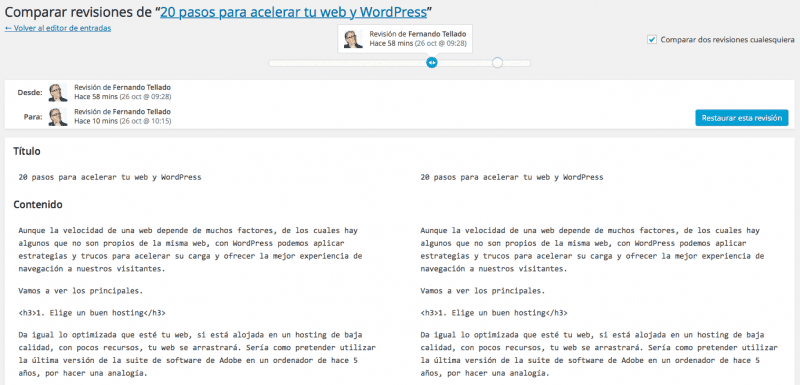
To make it easier, we leave you the commands below:
Add to the wp-config.php file.
If you want to disable revisions:
define('WP_POST_REVISIONS', false);
Si deseas poner un máximo:
define('WP_POST_REVISIONS', 4);
15. Increase WordPress memory
If your page goes down, you suffer 500 errors or your website goes very slowly, it may be that your page doesn't have the minimum memory it needs (at least 256 MB).
But it's nothing that can't be solved; to fix it, go to the public_html folder, from there, to the wp-config.php file where you'll paste this:
define('WP_MEMORY_LIMIT', '256M');
And voilà, you'll be able to say goodbye to delivery errors and optimize your loading speed.
16. Update PHP version to the latest compatible to increase WordPress speed
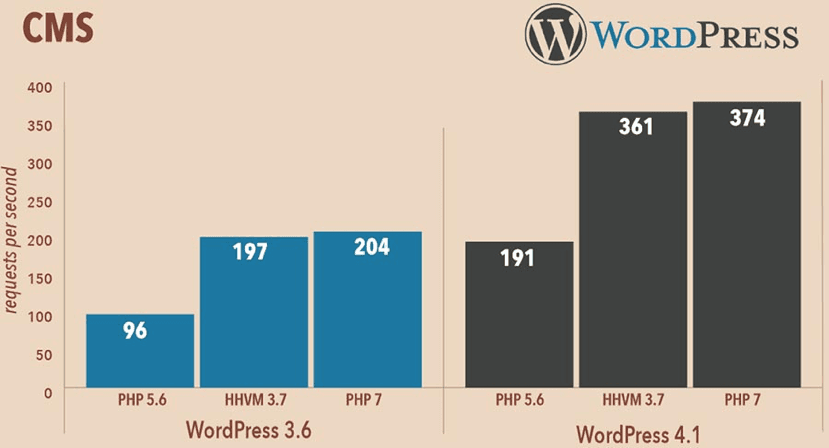
If you think migrating from PHP 5 to 7 is so tedious and complicated and not worth it, you'll be missing out on one of the measures with the greatest impact on your website's speed.
Although it's not very popular and does involve some effort, it's well worth it.
To give you an idea, your site will process 112% more requests per second when using PHP 7 compared to 5.
And the best, is that the content management system itself benefits by increasing its performance up to 50%. But of course, many don't decide to use it because there are many themes and plugins that are incompatible with PHP7.
17. Use Google code libraries
If you use open source code libraries, don't upload them from your page, but directly from Google.
To do it, review the code and change calls to scripts coming from your urls. Instead, adjust it so they load directly from Google, which surely has better servers than your humble website.
Practical case:
This is the current call:
<script src="http://dominio.com/scripts/ajax/libs/jquery/2.1.3/jquery.min.js"></script>
Así debes cambiarla:
<script src="https://ajax.googleapis.com/ajax/libs/jquery/2.1.3/jquery.min.js"></script>
18. Cache Gravatar images
To consider your site a blog visitors must leave a comment; obviously, these users have a photograph.
But there's a problem, taking a photo on Gravatar the amount of comments doubles the calls, which will further reload your blog due to the weight of those photos and the time they take to load.
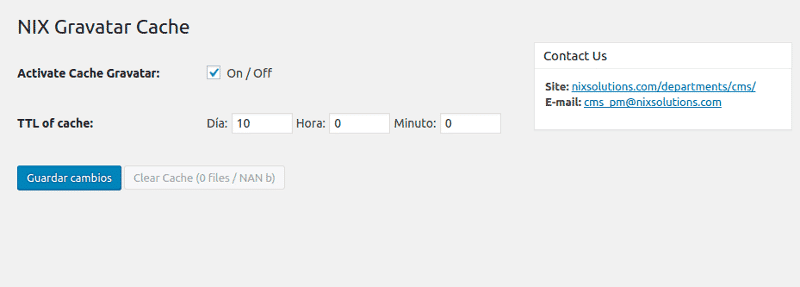
One of the solutions we've found for you is caching Gravatar images. For this you can rely on the NIX Gravatar Cache plugin.
- Enter the WordPress plugin installer.
- Locate, install and activate NIX Gravatar Cache.
- Go to the settings option – NIX Gravatar Cache.
- To activate it locate the Activate Cache Gravatar option.
- In TTL of cache select the time for the cache (up to 10 days).
- Save the settings.
19. Limit WordPress's HeartBeat function
This function allows keeping WordPress active so it executes certain functions at all times like saving an article every so often and avoiding losing changes.
But this is something that consumes a lot more resources and if it's a heavy plugin that consumption rises even more.
One solution is to monitor and control everything within your reach. It's very simple if you follow these steps:
- Enter the WordPress plugin installer.
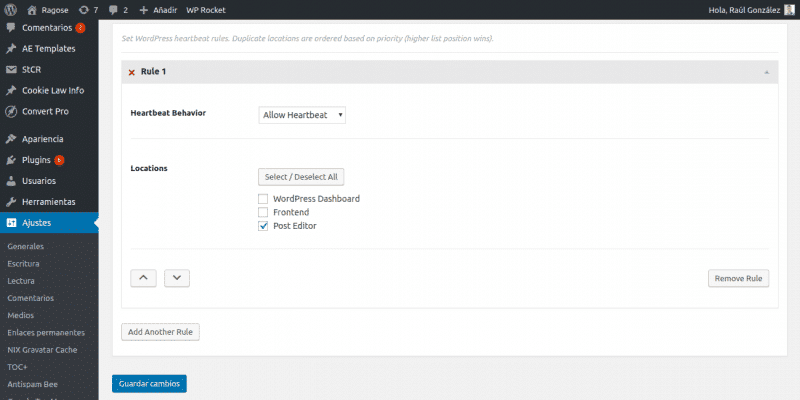
- Locate, install and activate Heartbeat Control.
- Go to the settings option – Heartbeat Control Settings.
- Proceed to select Allow Heartbeat and choose post to execute them exclusively there.
20. Remove unnecessary PHP calls
It's no secret that dynamic content management systems always load more slowly compared to websites created with flat HTML files.
It's simply loading a text file that only has code; that your content manager has to interpret PHP code and perform a search in every database table to know what to display.
Logically, it's a process that consumes resources and delays the complete loading of your site. To solve it you can install a cache system with which to take "photos" of your site and display these instead of generating the necessary queries for each visit.
Although this is always difficult to configure, and if not done correctly the effect will be equal to or worse than what we want to solve, a site that slows down.
An easier way is to remove unnecessary PHP calls, the WordPress version being used, among others.
21. Disable Cron file
This file is in charge of performing multiple tasks like:
- Searching for system and plugin updates.
- Publishing scheduled articles.
- Making automatic backups.
- Some other tasks.
22. Disable pingbacks and trackbacks
This lets you know who links to whom on your site, so it's a very important utility. But they're a big problem affecting speed.
For this simple reason you must do without them and disabling them is quite simple. Just go to WordPress admin -> Settings -> Comments and disable them.

23. Activate Gzip compression
Activating this compression decreases the weight of files you've uploaded to your website and therefore they will load much faster.
Using the checkgzipcompression tool you'll identify whether your hosting has this function active. Now, if you already use Cpanel activate Gzip compression in Software/Services -> Optimize website. Select the Compress all content option to do the activation.
If this whole process is complex for you, or you don't have enough knowledge to do it, contact the hosting so they do it.
Instead, if you're an advanced or expert level user, you can use the htaccess file with the code:
#Activar compresión Gzip
SetOutputFilter DEFLATE
Si después de este sigues con problemas con GZIP, es porque no lo has hecho correctamente.
#Activar compresión Gzip
SetOutputFilter DEFLATE
24. Empty the trash from time to time
When your home garbage bin is full you must empty it, it's obvious; in the case of your WordPress site the same happens. Every so often you must empty the trash so the site runs faster, just like your Smartphone or computer.
WordPress empties this trash automatically every 30 days, but it's always good to do it manually at least once a week, especially if you have little space on your disk.
Although you can also modify WordPress's automatic time; just add a line like this to the WordPress configuration file, wp-config.php and change the day number for the one you decide to apply. In the example we've used 4 days.
define( 'EMPTY_TRASH_DAYS', 4 );
Related reading
- How to index your website in Google
- Ranking in Google: technique, content and authority
- Best SEO agency: real criteria
Shall we work together?
If you want to apply this in your company with a team that combines technical SEO, GEO and paid acquisition measured against the income statement, request a no-commitment audit. You can also check real case studies or read the public GEO baselines that Elevam Labs publishes every quarter.